- Employees are ordered according to the import file or manual entry.
- The Last Name sort button is not initially selected/set.
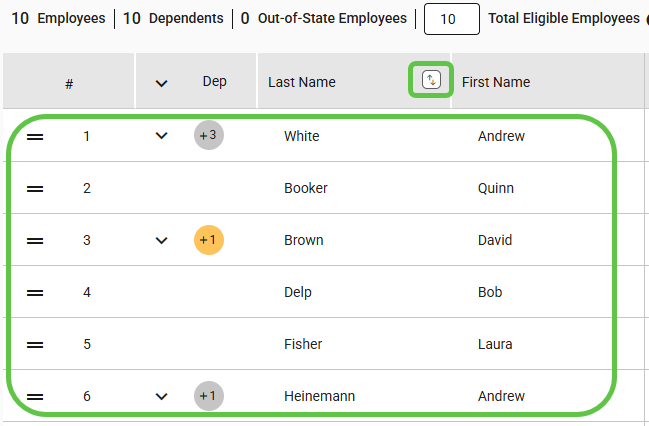
- To arrange employees alphabetically by their last name.
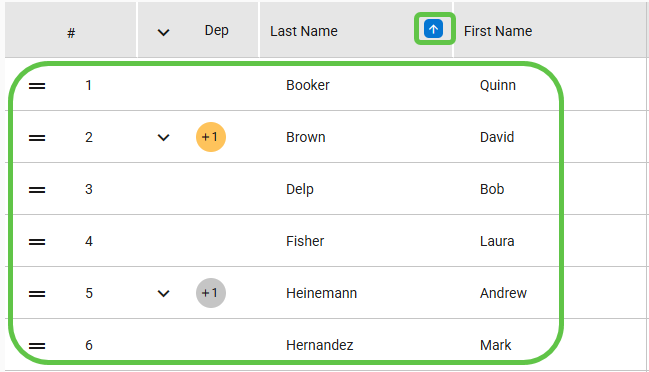
- Select the arrow icon next to Last Name to sort Last Name in ascending order.
- Select the arrow icon again to sort Last Name in descending order.
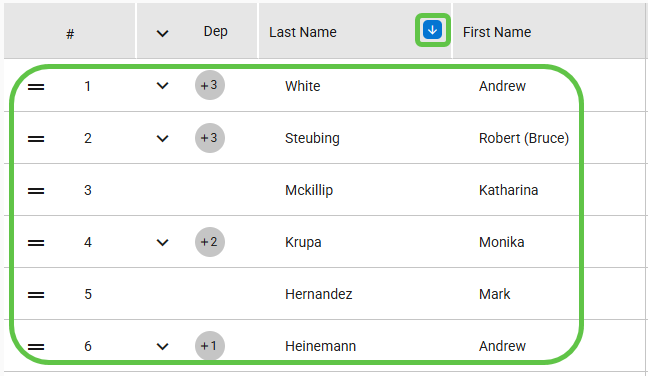
- Note: Sorting by Last Name remains in effect until the census is reimported or employees are manually reordered.
- A message is displayed when employees are arranged in a custom order using the reorder/move feature or by importing a file.
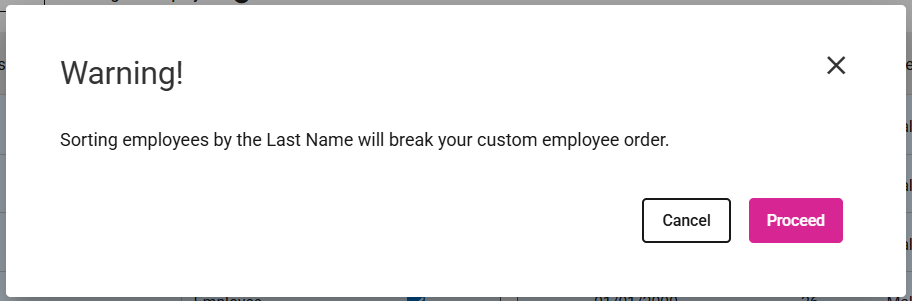
- Clicking Proceed displays a message that employees are sorted by last name.

- Clicking Cancel ensures the employee order remains unchanged.
- Moving an employee when there are 50 or less employees in the census. – New
- Click and hold the move icon.
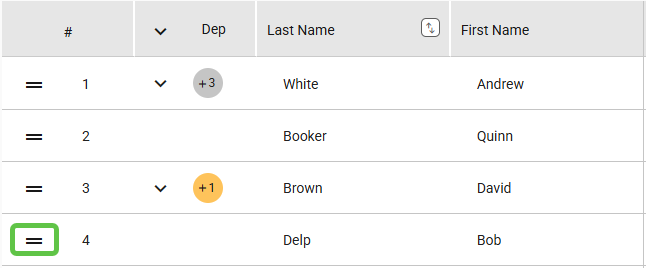
- Drag the employee up or down.
- A blue highlight is displayed as you drag the row.

- Release the employee in the appropriate placement.
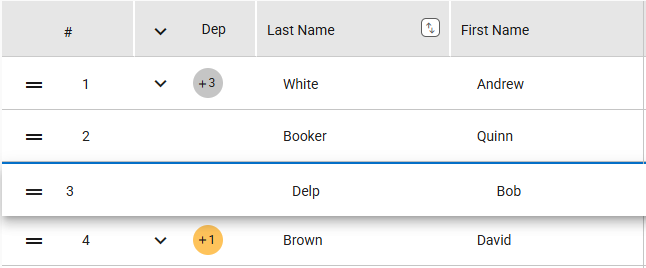
- A message is displayed to confirm the employee is moved.

- The employee is not eligible to move when all required fields are not completed.
- A message is displayed.

- The ability to drag and drop employees is not available when there are more than 50 employees.
- A message is displayed.
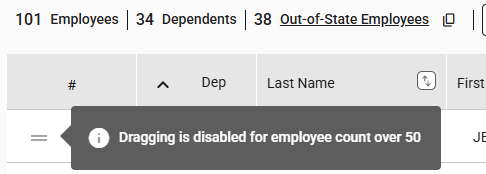
- Moving an employee when there more than 50 employees in the census.
- The row number is used to move the employee.

- Click in the row and highlight the number or double click on the number.


- Enter the new row number and press Tab.

- A message is displayed to confirm the employee placement.


- Note: If the entered number is greater than the number of employees, the employee will be placed at the bottom of the census.
